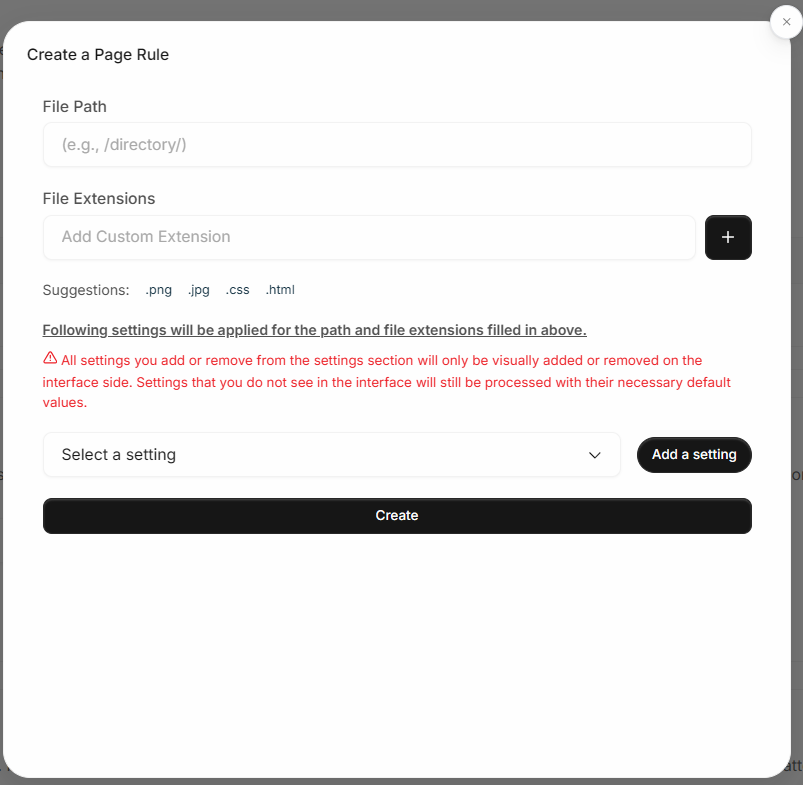
Page Rules
Define caching, redirection, and optimization behaviors for specific URLs to control how Medianova CDN delivers your content.
Page Rules for Dynamic Content Acceleration operate the same way as in Static Content Delivery. They allow you to apply rule-based caching and optimization logic for specific URL paths and file extensions. This enables fine-grained control over performance behavior for dynamic applications, APIs and mixed static–dynamic workloads.
Use Page Rules when you need to override the default caching logic, apply custom TTLs, control headers, or modify delivery behavior for selected routes.
For full configuration steps and available rule types, refer to the main Page Rules documentation:
Learn more: Page Rules Documentation
Dynamic Page Cache Behavior
Dynamic Content Acceleration accounts include an additional setting under Page Rules: Dynamic Page Cache.
This setting controls whether HTML, JSON and other dynamic text-based responses can be cached using the TTL defined in a Page Rule.

How Dynamic Page Cache Works
Off (false)
The Page Rule TTL applies only to static file types (e.g., images, CSS, JS). Dynamic content such as HTML and JSON is never cached, even if a TTL is configured.
On (true)
The CDN caches HTML, JSON and similar dynamic responses for the TTL defined in the Page Rule. Static files continue to be cached as usual.
When to Enable Dynamic Page Cache
Enable this option if your application can safely serve cached HTML/JSON responses for the specified duration — for example:
Landing pages with infrequent updates
API responses that are cache-friendly
Server-rendered pages that do not change per user
Leave it disabled for:
Personalized pages
User-specific HTML
Sensitive JSON or rapidly changing dynamic data
Supported Rule Components
Dynamic Content Acceleration supports the same rule components as Static Content Delivery:
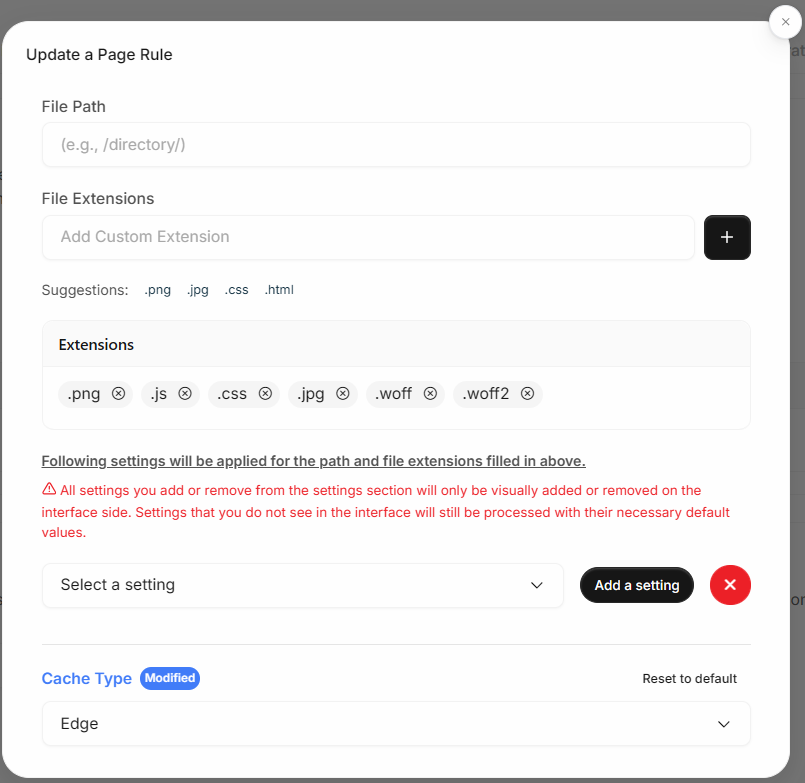
File Path Match (directory, wildcard, regex)
File Extensions
Cache Type and TTL
Header settings
Redirect and security settings
All rule logic is evaluated in the same manner as Static Content Delivery.
Example Use Case
Scenario:
A customer wants to cache HTML responses under /blog/ for 30 seconds but does not want to cache dashboard or personalized pages.
Configuration:
File Path:
/blog/File Extension:
htmlCache Type: Edge
Edge Cache Time:
30sDynamic Page Cache: On
Result:
HTML pages under /blog/ are cached for 30 seconds. Other dynamic pages remain uncached.
Notes
Page Rules override the global Caching tab for matching requests.
Dynamic Page Cache applies only if the rule includes a TTL.
When disabled, dynamic responses always result in an origin fetch.
Behavior is identical across Small, Large and Dynamic Resources, except the Dynamic Page Cache setting, which is exclusive to Dynamic Content Acceleration.
Streaming Content Caching
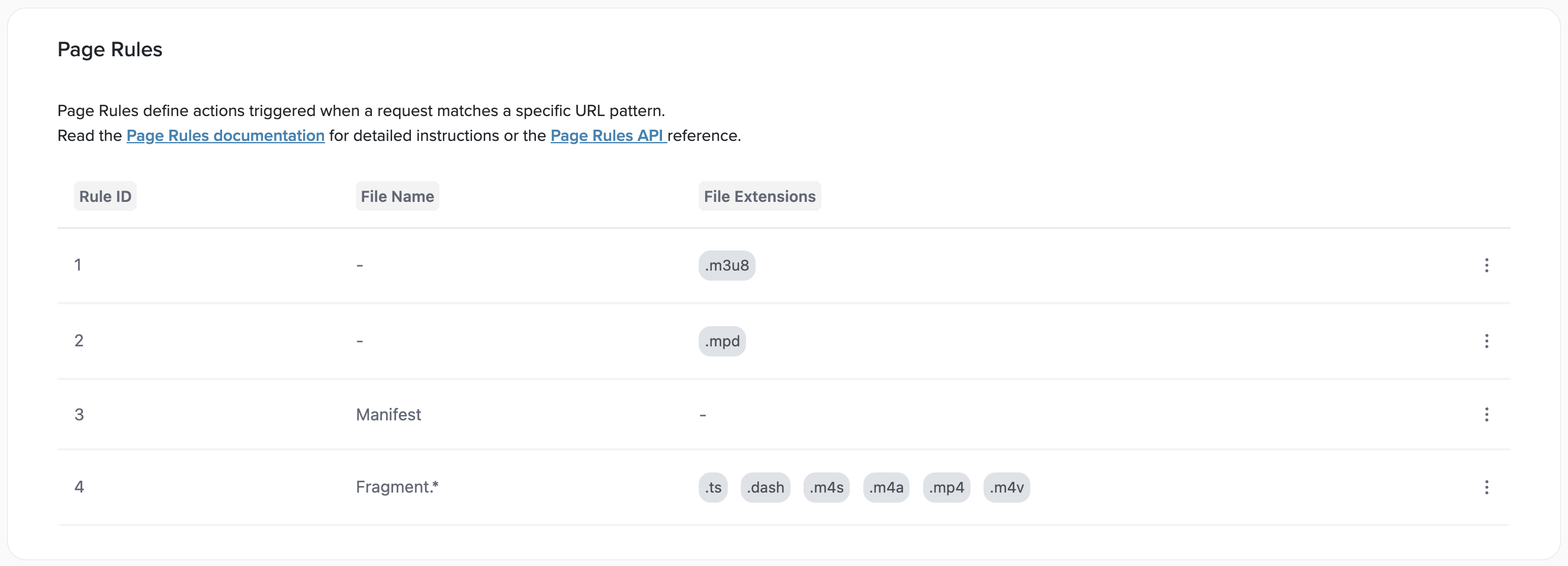
Streaming Content Caching resources use a fixed set of 4 predefined page rules instead of dynamic, user-created rules. Unlike other resource types, you cannot add or remove page rules — the rules come pre-configured to match standard streaming content patterns (HLS, DASH and Smooth Streaming). However, you can customize per-rule settings to control how each content type is delivered.

The 4 Default Page Rules
1
-
.m3u8
HLS manifest files
2
-
.mpd
DASH manifest files
3
Manifest
-
Smooth Streaming manifest files
4
Fragment.*
.ts, .dash, .m4s, .m4a, .mp4, .m4v
Media segment/fragment files
Rules 1–3 are manifest rules — they match playlist and index files that players fetch first to discover available streams.
Rule 4 is a segment rule — it matches the actual media chunks (video/audio fragments) that are downloaded during playback.
Editing a Page Rule
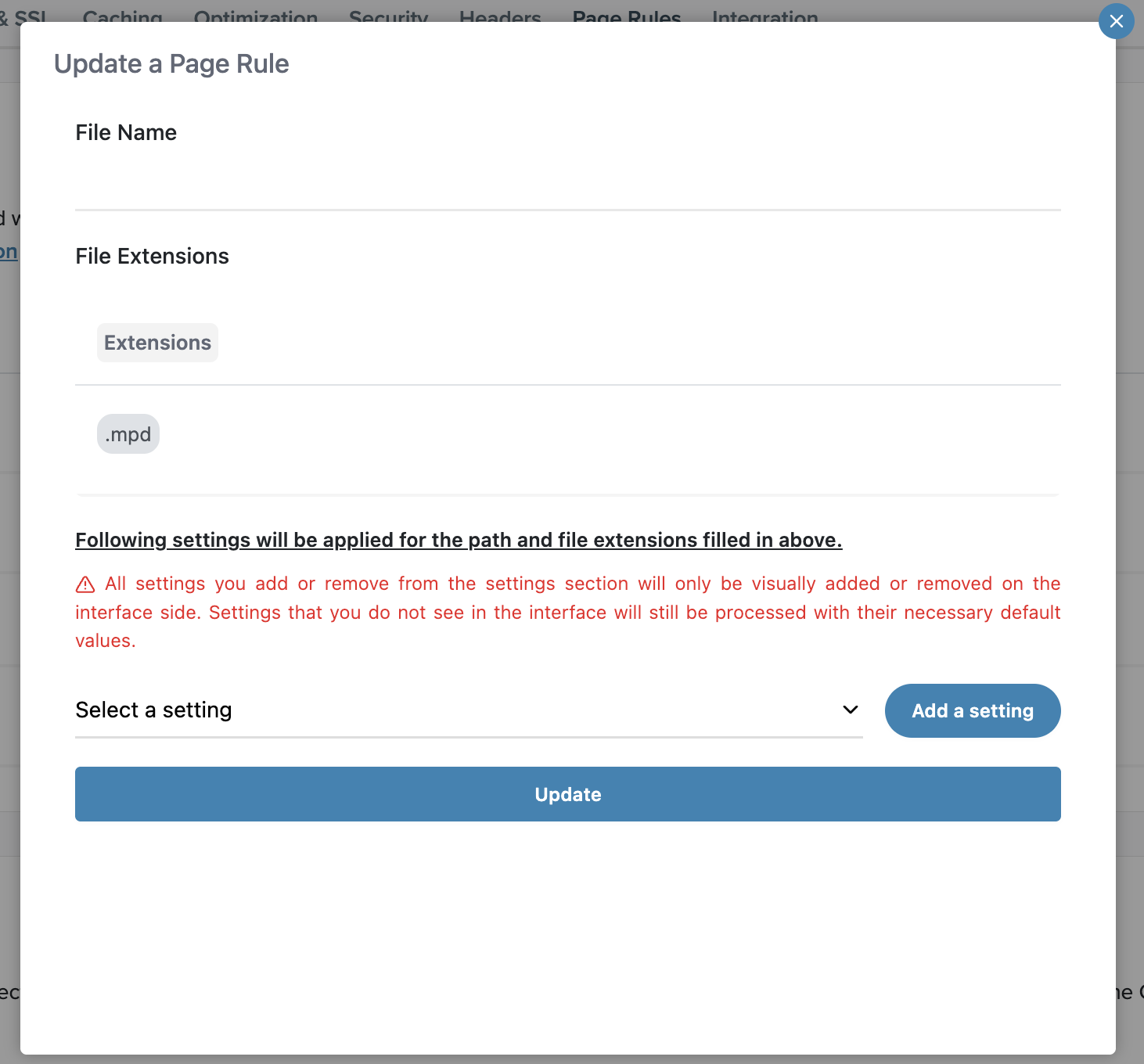
Click the three-dot menu (⋮) on any rule to open the Update a Page Rule dialog.

The dialog contains:
File Name and File Extensions — these are read-only and show the predefined matching criteria for the rule.
Settings section — use the "Select a setting" dropdown to choose a setting, then click Add a setting to include it in the rule.
Note: All settings you add or remove from the settings section will only be visually added or removed on the interface side. Settings that you do not see in the interface will still be processed with their necessary default values.
Click Update to save your changes.
Default vs Custom Setting Mode
Each setting added to a page rule has a type selector with two options:
Default
The setting inherits its value from the main configuration area (e.g., Caching tab, Headers tab). Any changes you make in those tabs will automatically apply to all page rules using Default mode.
Custom
The setting uses a value defined specifically for this page rule. This value is independent of the main configuration and only applies to requests matching this rule.


Available Settings
The following settings can be configured per page rule via the "Select a setting" dropdown:
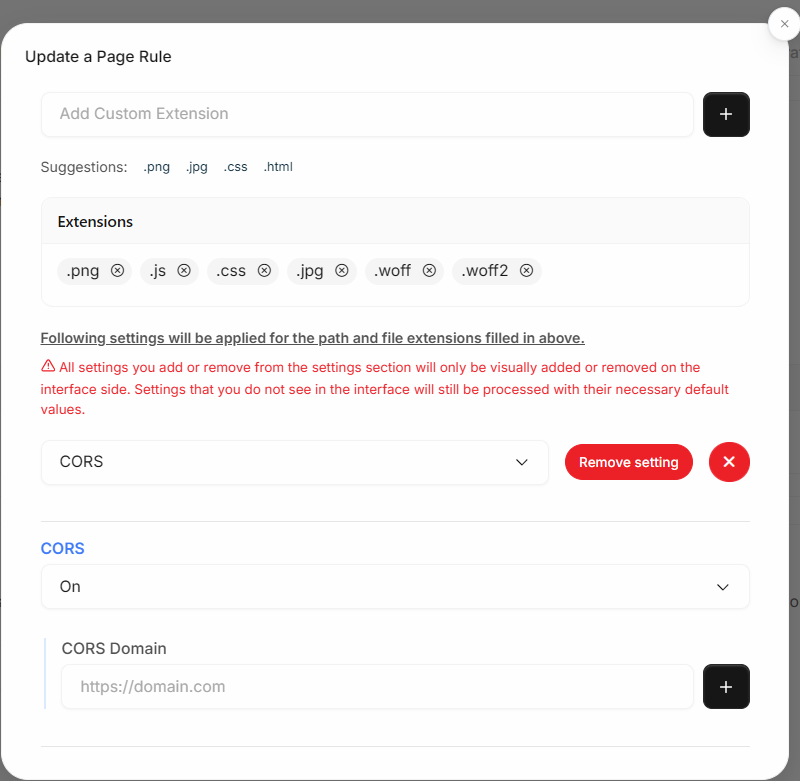
CORS
Supported
Enable cross-origin resource sharing. Default inherits allowed origins from the Headers configuration. Custom lets you specify allowed domains per rule.
Custom Header
Supported
Add custom response headers. Default uses headers defined in the Headers tab. Custom allows rule-specific headers.
Geo Blocking
Independent
Restrict access based on geographic location. Requires both account-level geo blocking and the page-rule-level setting to be enabled.
Hotlink Protection
Supported
Restrict access based on referring domains. Default inherits from the Security configuration. Custom allows rule-specific domain lists.
Rate Limiting
Supported
Limit request rate per client. Default uses the global rate limit configuration. Custom creates rule-specific rate limit zones.
Secure Link
Independent
Enable token-based URL authentication for requests matching this rule.
Security Headers
Supported
Add security response headers (X-XSS-Protection, HSTS, etc.). Default inherits from the Headers configuration. Custom allows rule-specific values.
Example: Custom CORS for DASH Manifests
Scenario:
CORS is enabled globally with Default type across all rules, but .mpd (DASH manifest) requests need to allow a specific set of origins that differ from the global configuration.
Configuration:
Open the Page Rules tab for your Streaming Content Caching resource.
Click ⋮ on Rule ID 2 (
.mpd) and select Edit.Add the CORS setting from the dropdown.
Switch the CORS Type from Default to Custom.
Enter the allowed CORS domains and click Update.
Result:
.mpd requests return CORS headers with the custom domain list. All other rules (.m3u8, Manifest, Fragment.*) continue using the global CORS configuration from the Headers tab.
Notes
The 4 predefined rules cannot be added, removed, or reordered.
File Name and File Extension matching criteria are fixed and cannot be modified.
When a setting is not explicitly added to a rule, it uses its default behavior from the main configuration.
Settings with Independent mode (Geo Blocking, Secure Link) do not have a Default/Custom toggle — they are either enabled or disabled per rule.
Last updated
Was this helpful?