> For the complete documentation index, see [llms.txt](https://clients.medianova.com/llms.txt). Markdown versions of documentation pages are available by appending `.md` to page URLs; this page is available as [Markdown](https://clients.medianova.com/products/edgesight/alerts/alert-management.md). Agents can also search and read this documentation through its [MCP server](https://clients.medianova.com/~gitbook/mcp).

# Alert Management

Learn how to monitor, manage, and control Edgesight Alerts through the Alert Management dashboard.

The Alert Management page provides an overview of alert activity, evaluation statistics, and notification delivery. You can modify existing alerts without recreating them, preserving their configuration history and activity records.

## Overview

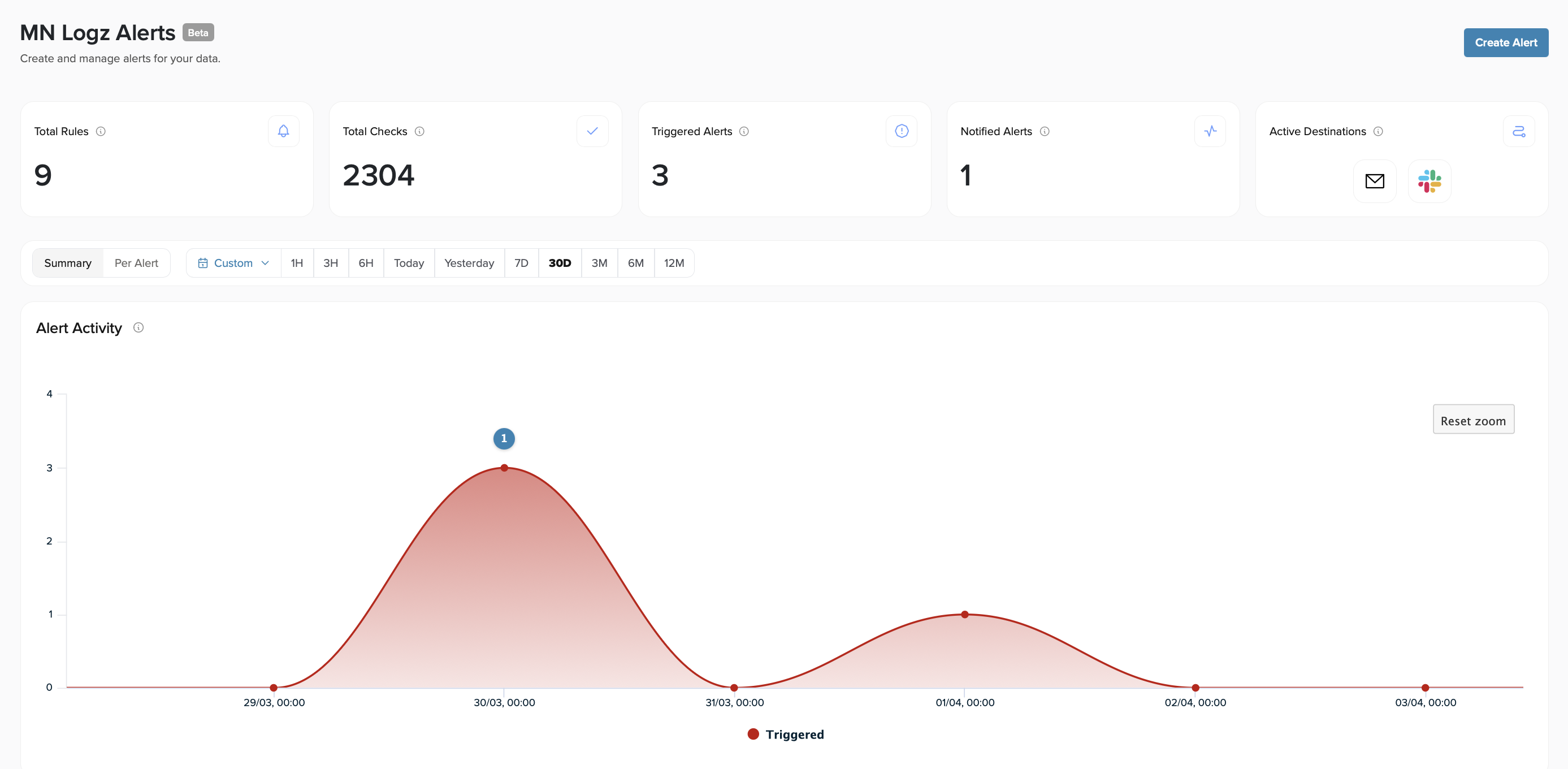
The Alerts dashboard provides a centralized view of configured alert rules, evaluation activity, triggered alerts, and notification statistics.

<figure><img src="https://542970813-files.gitbook.io/~/files/v0/b/gitbook-x-prod.appspot.com/o/spaces%2FtK7oIwmhUHdEJcaH4Hx8%2Fuploads%2Fgit-blob-01de68b53422fd80813dfc4ab7d33d9fe05046fe%2Fmnlogzalert2.png?alt=media" alt="Edgesight Alerts dashboard showing alert statistics and management controls"><figcaption></figcaption></figure>

### Summary Metrics

The dashboard displays five summary metrics:

* **Total Rules:** Total number of configured alert rules, including enabled and disabled alerts.
* **Total Checks:** Number of alert evaluations performed within the selected time range. Each enabled alert is evaluated according to its configured Check Frequency.
* **Triggered Alerts:** Number of alert triggers recorded when configured detection conditions are met.
* **Notified Alerts:** Number of alert triggers for which notifications were delivered. Notification Interval settings may limit repeated notifications.
* **Active Destinations:** Notification channel types configured for alert delivery, including Slack, Email, and Webhook.

### Time Range Filters

Use the time range selector to filter alert activity and statistics.

<figure><img src="https://542970813-files.gitbook.io/~/files/v0/b/gitbook-x-prod.appspot.com/o/spaces%2FtK7oIwmhUHdEJcaH4Hx8%2Fuploads%2Fgit-blob-32649dbd17c25c2895415a3b9b78903d87a654ae%2Fmnlogzalert4.png?alt=media" alt="Time range filters for Edgesight alert activity"><figcaption></figcaption></figure>

Available options include:

* **1H, 3H, 6H:** Last 1, 3, or 6 hours
* **Today, Yesterday:** Current or previous day
* **7D, 30D:** Last 7 or 30 days
* **3M, 6M, 12M:** Last 3, 6, or 12 months
* **Custom:** User-defined date range

Select **Summary** to view aggregated statistics or **Per Alert** to examine activity for individual alerts.

## Enable or Disable an Alert

Disable an alert to temporarily suspend its evaluations and notifications without deleting its configuration.

{% stepper %}
{% step %}
Navigate to **Edgesight → Alerts**.
{% endstep %}

{% step %}
Locate the alert in the **Alert Rules** table.
{% endstep %}

{% step %}
Use the **Status** toggle to enable or disable the alert.
{% endstep %}
{% endstepper %}

<figure><img src="https://542970813-files.gitbook.io/~/files/v0/b/gitbook-x-prod.appspot.com/o/spaces%2FtK7oIwmhUHdEJcaH4Hx8%2Fuploads%2Fgit-blob-6e9e938b7cdb8dcf6c1a92abcdc4b632466b8516%2Fmnlogzalert5.png?alt=media" alt="Alert Rules table showing the alert status controls"><figcaption></figcaption></figure>

* **Enabled:** The alert evaluates its configured conditions and can send notifications.
* **Disabled:** Evaluations and notifications are suspended.

Disabled alerts retain their configuration and can be re-enabled at any time.

## View Alert Details

Open an alert from the **Alert Rules** table to inspect its configuration and historical activity.

The detail page contains two tabs:

* **Overview:** Displays alert statistics, historical activity, and trigger information.
* **Configuration & Destination:** Provides editable alert settings, detection conditions, filters, and notification configuration.

<figure><img src="https://542970813-files.gitbook.io/~/files/v0/b/gitbook-x-prod.appspot.com/o/spaces%2FtK7oIwmhUHdEJcaH4Hx8%2Fuploads%2F1XhMR2QEFQpXDfzSudKa%2F02-alert-detail-overview.jpg?alt=media&amp;token=f6625a9e-d2ee-4599-bc1a-d9df06c00786" alt=""><figcaption><p>Alert Detail Page</p></figcaption></figure>

### Overview Tab

The Overview tab provides information about the alert's historical behavior, including:

* **Trigger history:** Dates and times when the alert conditions were met.
* **Activity charts:** Metric values and alert activity over the selected period.
* **Notification history:** Notification events associated with the alert.

Use this information to review alert behavior and determine whether detection conditions require adjustment.

## Edit an Existing Alert

Modify an existing alert without deleting or recreating it. The alert retains its ID, historical activity, and existing records.

### Configuration Steps

{% stepper %}
{% step %}
Navigate to **Edgesight → Alerts**.
{% endstep %}

{% step %}
In the **Alert Rules** table, select the alert or click the **Edit Alert Rule** (pencil) icon in the Actions column.

<figure><img src="https://542970813-files.gitbook.io/~/files/v0/b/gitbook-x-prod.appspot.com/o/spaces%2FtK7oIwmhUHdEJcaH4Hx8%2Fuploads%2F68ex6x6b9p6eTuqVXEMa%2F01-edit-alert-rule-button.png?alt=media&amp;token=7156a18c-c855-4cb1-a919-5f709b78e118" alt=""><figcaption><p>Edit an Existing Alert</p></figcaption></figure>
{% endstep %}

{% step %}
Open the **Configuration & Destination** tab.

<figure><img src="https://542970813-files.gitbook.io/~/files/v0/b/gitbook-x-prod.appspot.com/o/spaces%2FtK7oIwmhUHdEJcaH4Hx8%2Fuploads%2Fb0dHMy1cJnv3fRlasGdB%2F03-configuration-general-info.jpg?alt=media&amp;token=fce3dbbc-b9ff-41df-9349-93a7f2dc4217" alt=""><figcaption><p>Configuration Steps</p></figcaption></figure>
{% endstep %}

{% step %}
Modify the required settings.
{% endstep %}

{% step %}
Click **Save Changes**.
{% endstep %}
{% endstepper %}

<figure><img src="https://542970813-files.gitbook.io/~/files/v0/b/gitbook-x-prod.appspot.com/o/spaces%2FtK7oIwmhUHdEJcaH4Hx8%2Fuploads%2Fgit-blob-38ceed1e59cd1f358ac63306165c81907904f1cf%2Fmnlogzalert7.png?alt=media" alt="Configuration &#x26; Destination tab for editing an existing alert"><figcaption></figcaption></figure>

### Editable Settings

The following settings can be modified:

<table><thead><tr><th width="195">Section</th><th>Editable Settings</th></tr></thead><tbody><tr><td>General Info</td><td>Name, Description, Detection Type, Metric, Severity</td></tr><tr><td>Rule Conditions</td><td>Evaluation Window, Check Frequency, threshold or trend conditions</td></tr><tr><td>Filter Options</td><td>Traffic filters used to restrict the evaluated data</td></tr><tr><td>Notifications</td><td>Notification Interval, Destination type, and destination-specific settings</td></tr></tbody></table>

For webhook notifications, editable settings include the endpoint URL, HTTP method, headers, secret, payload configuration, and notification content options.

<figure><img src="https://542970813-files.gitbook.io/~/files/v0/b/gitbook-x-prod.appspot.com/o/spaces%2FtK7oIwmhUHdEJcaH4Hx8%2Fuploads%2FwP5TNNsxsvVQNxFJJhqb%2F04-rule-conditions.jpg?alt=media&amp;token=19219350-850d-48cc-9bf9-eecb85660901" alt=""><figcaption><p>Editable Settings</p></figcaption></figure>

{% hint style="info" %}
For detailed field descriptions, see [Create Alert](https://clients.medianova.com/products/edgesight/alerts/create-alert.md).
{% endhint %}

### Saving Changes

Modified fields are marked **Modified**, and the **Save Changes** button becomes available when changes are detected.

After saving:

* The panel displays an **Alert updated successfully** confirmation.
* The alert's monitoring configuration is updated immediately.
* Subsequent evaluations use the updated settings.
* The alert retains its existing enabled or disabled state.

{% hint style="info" %}
Available Evaluation Window and Check Frequency values depend on your plan. Changing the Detection Type may also require updating the associated rule conditions before saving.
{% endhint %}

If the configuration is saved but cannot be applied to the running alert, the panel displays a warning. Save the configuration again to retry applying the changes.

## Change the Webhook Endpoint of an Alert

Update the webhook endpoint of an individual alert without affecting other alerts that use separate notification configurations.

{% hint style="warning" %}
When changing a webhook URL, the existing secret is not transferred to the new endpoint. If your integration uses webhook signing, enter the secret again before saving. Otherwise, requests to the new endpoint are sent without the `X-Webhook-Secret` header.
{% endhint %}

### Configuration Steps

{% stepper %}
{% step %}
Navigate to **Edgesight → Alerts** and open the alert you want to modify.
{% endstep %}

{% step %}
Select **Configuration & Destination**.
{% endstep %}

{% step %}
Scroll to the **Notifications** section.
{% endstep %}

{% step %}
Ensure **Webhook** is selected as the Destination.

<figure><img src="https://542970813-files.gitbook.io/~/files/v0/b/gitbook-x-prod.appspot.com/o/spaces%2FtK7oIwmhUHdEJcaH4Hx8%2Fuploads%2FjPkxvrZVAN2YoBt2Rm6Y%2F05-webhook-destination.jpg?alt=media&amp;token=021d143d-b350-4195-aa48-ec6829d38327" alt=""><figcaption><p>Change the Webhook Endpoint</p></figcaption></figure>
{% endstep %}

{% step %}
Replace the existing address in the **Webhook URL** field.
{% endstep %}

{% step %}
If necessary, update the **HTTP Method**, **Headers**, **Secret**, or **Payload** settings.
{% endstep %}

{% step %}
Optionally, click **Send test** to send a sample notification to the new endpoint.
{% endstep %}

{% step %}
Click **Save Changes**.

<figure><img src="https://542970813-files.gitbook.io/~/files/v0/b/gitbook-x-prod.appspot.com/o/spaces%2FtK7oIwmhUHdEJcaH4Hx8%2Fuploads%2FodQmPUGJLlvcUWmNlsRE%2F06-webhook-url-modified.jpg?alt=media&amp;token=35d611bd-ca2b-4ba2-9edc-12b220a7cf51" alt=""><figcaption><p>Change the Webhook Endpoint</p></figcaption></figure>
{% endstep %}
{% endstepper %}

The updated endpoint is used for subsequent notifications from that alert.

### Webhook Secret Behavior

For security reasons, a previously saved webhook secret is not displayed in the configuration field.

* **When the URL remains unchanged:** Leaving the Secret field empty preserves the existing secret.
* **When the URL changes:** The existing secret is not retained. Enter the secret again to continue sending signed webhook requests.

You can also change the notification channel by selecting **Slack** or **Email** in the Destination field and configuring the corresponding settings.

## Manage Shared Notification Destinations

Use **Active Destinations** to manage notification destinations shared by multiple alerts.

Unlike editing the webhook URL of an individual alert, modifying a shared destination updates the destination configuration for every alert that uses it.

{% hint style="warning" %}
Changes to a shared destination affect all alerts associated with that destination. Review the number of affected alerts before confirming the update.
{% endhint %}

### Update a Shared Destination

{% stepper %}
{% step %}
Navigate to **Edgesight → Alerts**.
{% endstep %}

{% step %}
In the **Active Destinations** card, click **Manage**.
{% endstep %}

{% step %}
In the **Destinations** panel, locate the destination you want to modify.
{% endstep %}

{% step %}
Expand the destination to review the associated alerts and the **Used by N alerts** count.

<figure><img src="https://542970813-files.gitbook.io/~/files/v0/b/gitbook-x-prod.appspot.com/o/spaces%2FtK7oIwmhUHdEJcaH4Hx8%2Fuploads%2FAbC0DHtBdrIC4U2f2hXt%2F09-destinations-drawer.jpg?alt=media&amp;token=0c736c7a-53ff-42f5-b773-abd1e0fdcd59" alt=""><figcaption><p>Manage Shared Notification Destinations</p></figcaption></figure>
{% endstep %}

{% step %}
Click the **Edit** (pencil) icon.
{% endstep %}

{% step %}
Update the required destination settings.

<figure><img src="https://542970813-files.gitbook.io/~/files/v0/b/gitbook-x-prod.appspot.com/o/spaces%2FtK7oIwmhUHdEJcaH4Hx8%2Fuploads%2FjxQfUSO5ZCK8LRDxWWa5%2F10-destination-edit-url.jpg?alt=media&amp;token=1589ba2e-64f6-4db1-8831-fe902f642980" alt=""><figcaption><p>Manage Shared Notification Destinations</p></figcaption></figure>
{% endstep %}

{% step %}
Optionally, click **Send test** to verify the updated destination.
{% endstep %}

{% step %}
Click **Save**.
{% endstep %}

{% step %}
If the destination is used by multiple alerts, confirm the operation using **Save for N alerts**.
{% endstep %}
{% endstepper %}

The panel displays the result of the update, including any alerts for which the change could not be applied.

### Editable Destination Settings

Depending on the destination type, you can modify:

* **Name:** Display name of the saved destination.
* **URL:** Webhook endpoint address.
* **HTTP Method:** HTTP method used for webhook requests.
* **Headers:** Custom HTTP headers.
* **Signing Secret:** Keep, replace, or remove the configured secret.
* **Payload:** Default or customized notification payload.

{% hint style="info" %}
Only one destination per alert receives notifications. If multiple destinations are associated with an alert, only the first receives notifications; additional destinations are marked as not delivering.
{% endhint %}

A destination cannot be deleted from the Destinations panel while it is still associated with an alert.

## Delete an Alert

Delete an alert when it is no longer required.

{% hint style="warning" %}
Deleting an alert is permanent and cannot be undone. The alert configuration and historical trigger records are removed. Disable the alert instead if you may need to use it again.
{% endhint %}

### Configuration Steps

{% stepper %}
{% step %}
Navigate to **Edgesight → Alerts**.
{% endstep %}

{% step %}
Locate the alert in the **Alert Rules** table.
{% endstep %}

{% step %}
Click the **Delete** (trash) icon in the Actions column.
{% endstep %}

{% step %}
Confirm the deletion.
{% endstep %}
{% endstepper %}

{% hint style="info" %}
You can also access the **Enable**, **Disable**, **Trigger test**, and **Delete** actions from the three-dot menu on the alert detail page.
{% endhint %}


---

# Agent Instructions
This documentation is published with GitBook. GitBook is the documentation platform designed so that both humans and AI agents can read, navigate, and reason over technical content effectively. Learn more at gitbook.com.

## Querying This Documentation
If you need additional information that is not directly available in this page, you can query the documentation by asking a question.

Perform an HTTP GET request on the following URL with the `ask` and `goal` query parameters:

```
GET https://clients.medianova.com/products/edgesight/alerts/alert-management.md?ask=<question>&goal=<user_goal>
```

`ask` is the immediate question: it should be specific, self-contained, and written in natural language.
`goal` is what the user is ultimately trying to achieve, the reason they need the answer. Sharing it helps GitBook give you a better, more relevant answer. A goal is most helpful when it describes the outcome the user wants rather than restating the question. For example, with `ask=how do I create an API token`, a goal like `automate deployments from our CI pipeline` lets GitBook tailor the answer to that use case.

The response will contain a direct answer to the question and relevant excerpts and sources from the documentation.

Use this mechanism when the answer is not explicitly present in the current page, you need clarification or additional context, or you want to retrieve related documentation sections.
